
Getting Started
Cultured is a fully featured Game Maker IDE Plugin that helps you localize your game in Any Language on Any Platform with ease. Text authoring can be done in GML or externally, and Cultured ships with a full Gather-Transfer-Compile configurable pipeline to be consumed by your translation team.
Cultured is developed by Eight Ounce Games with support from Nommiin (https://nomm.dev)
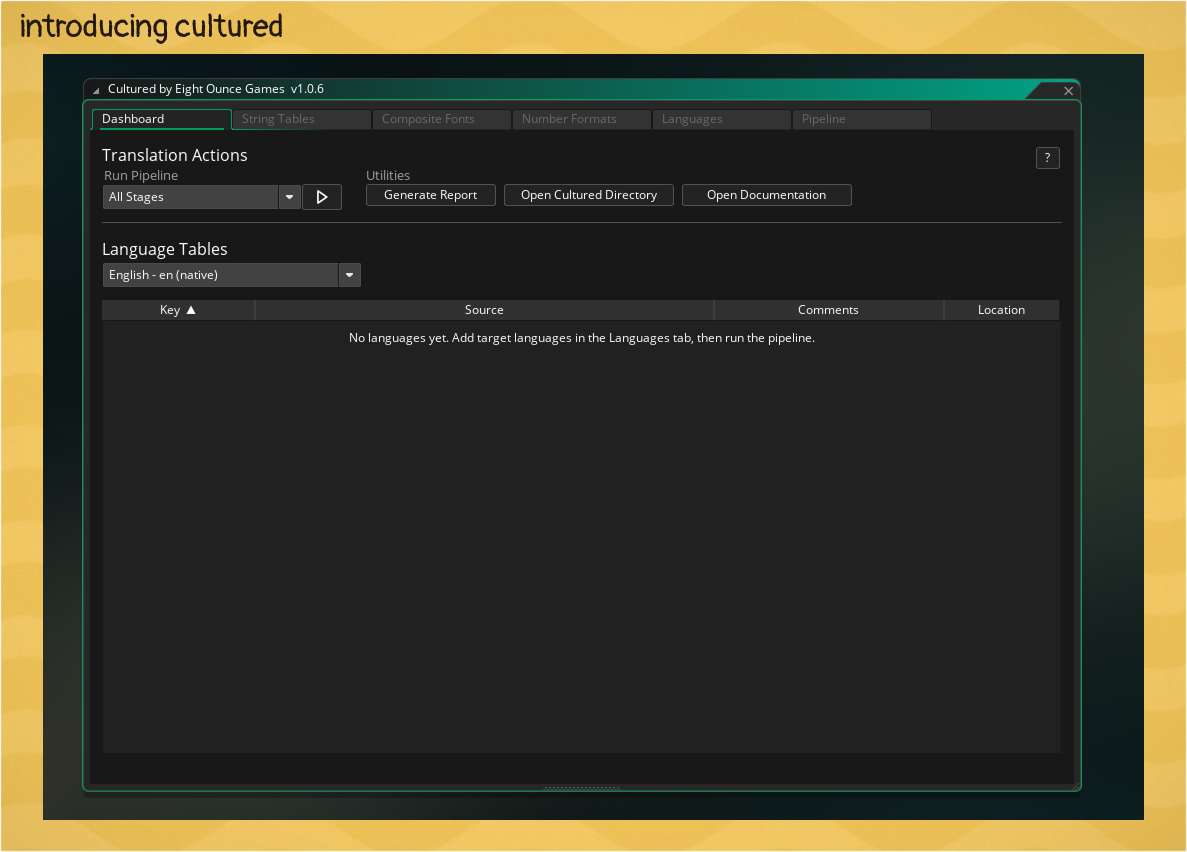
- Text authoring and translation inside Game Maker IDE
- External String Table support for text authored outside of Game Maker.
- Automatic font switching glyph range generation.
- Variable, pluralization, and number formatting tools.
- Regional language mapping and fallback control.
- Automated contextual text identities and text commenting system to get the best translations from your team.
- A production ready, battle tested, customizable Translation Pipeline that integrates with your translation team through .po and .csv transfer stages.
- CLI for CI/CD and automation.
- Health Reports to help identify broken or missing translations.
Installing Cultured
Cultured is fully installable from Game Makers Package Manager with only a few clicks. For manual installation, Command Line Interface, or older versions see the Releases section.
1) Open the Package Manager found in Tools -> Package Manager and add a new registry by clicking the plus button in the top right.
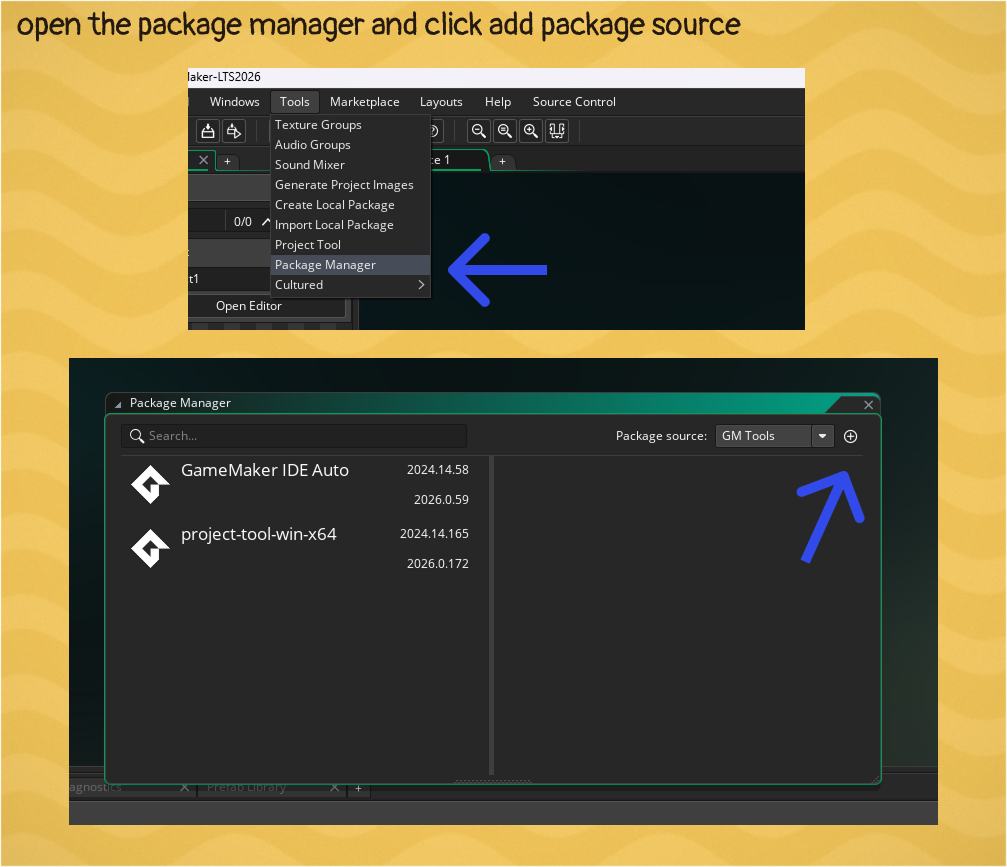
2) Add the Eight Ounce Games registry to Game Maker and update the Name and Url, everything else can be left as is.
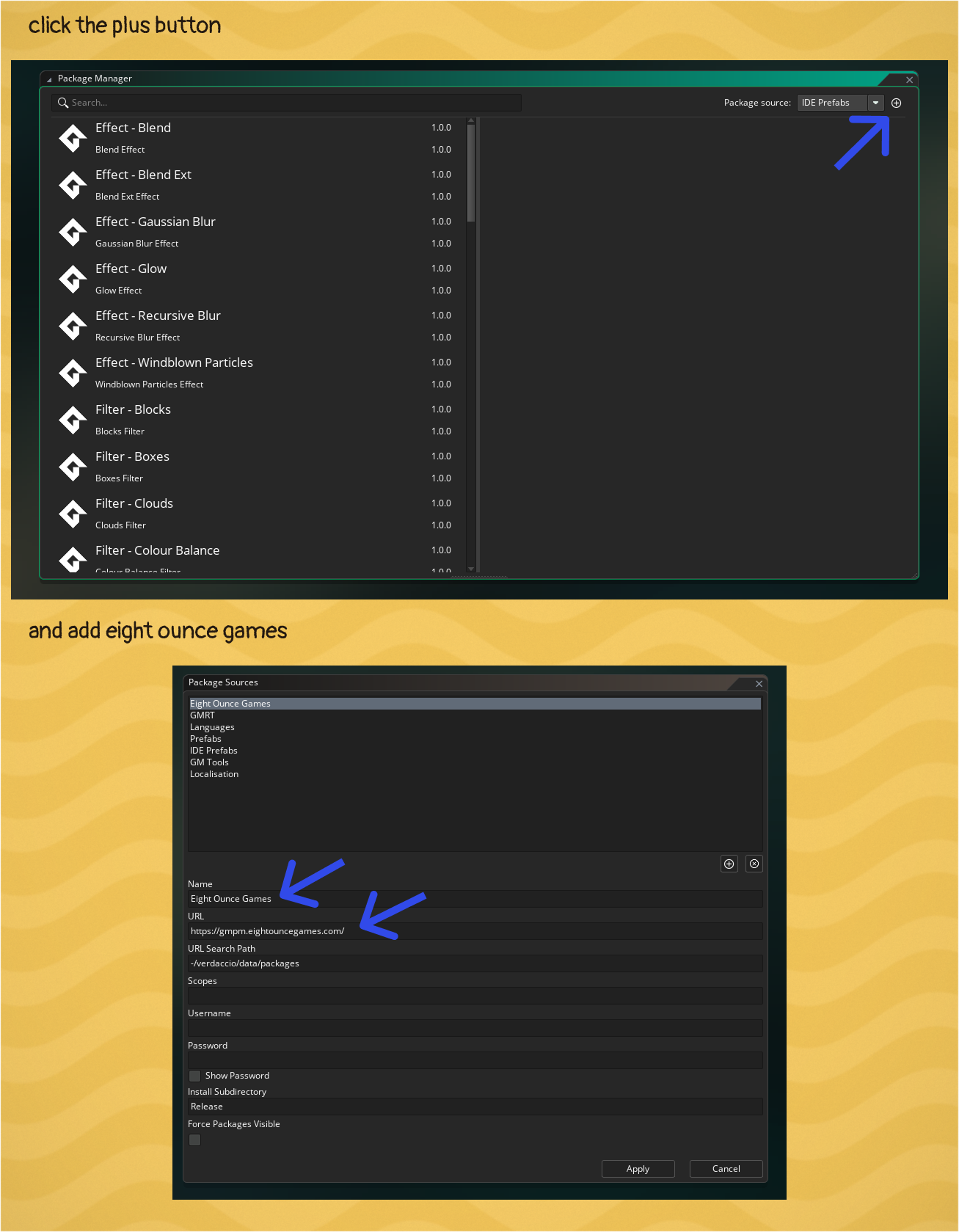
name: Eight Ounce Games
url: https://gmpm.eightouncegames.com
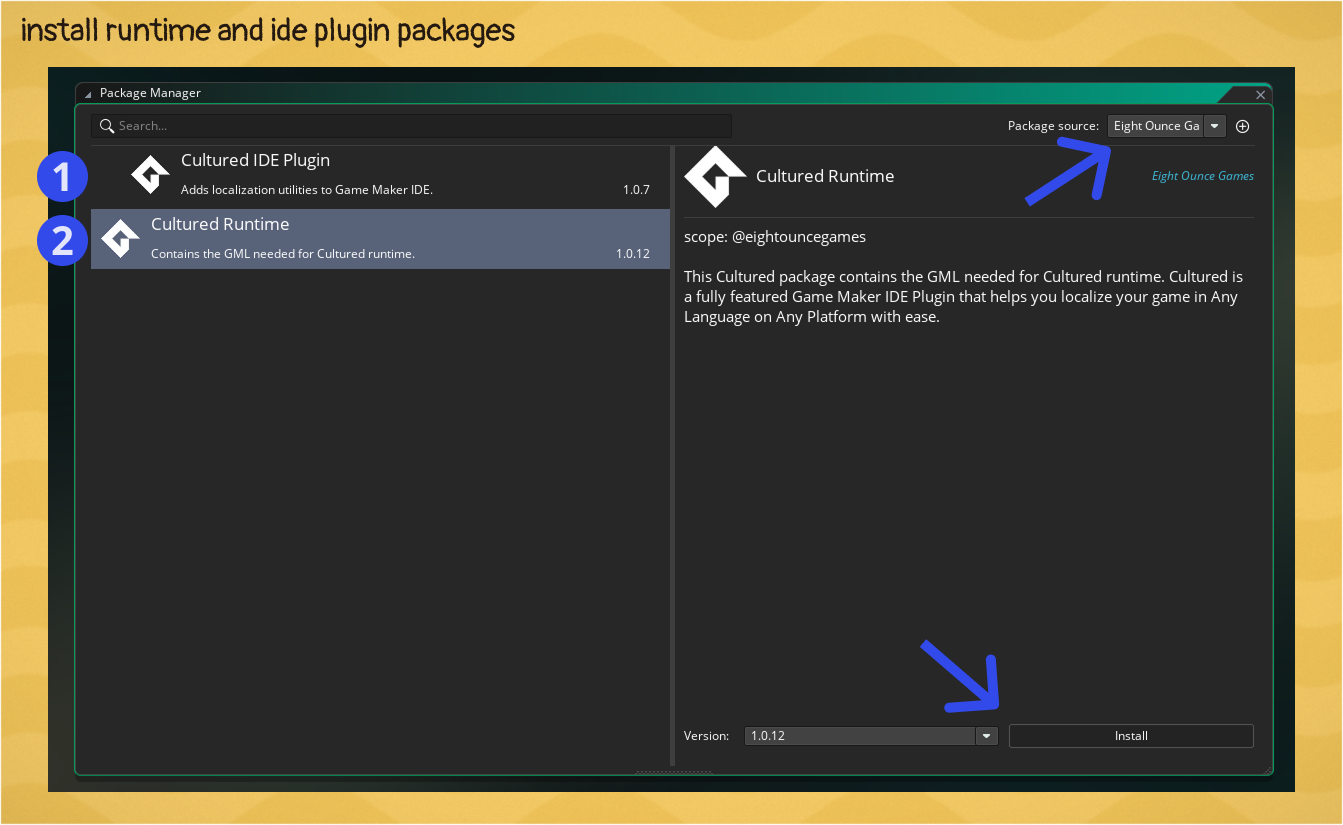
3) Install the Cultured Runtime and Cultured IDE packages in the Package Manager
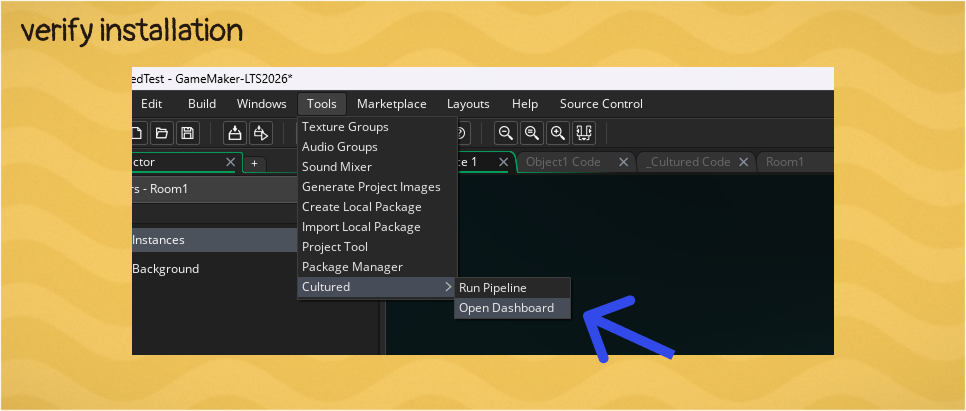
4) Restart Game Maker and check that Cultured can be found in Tools -> Cultured
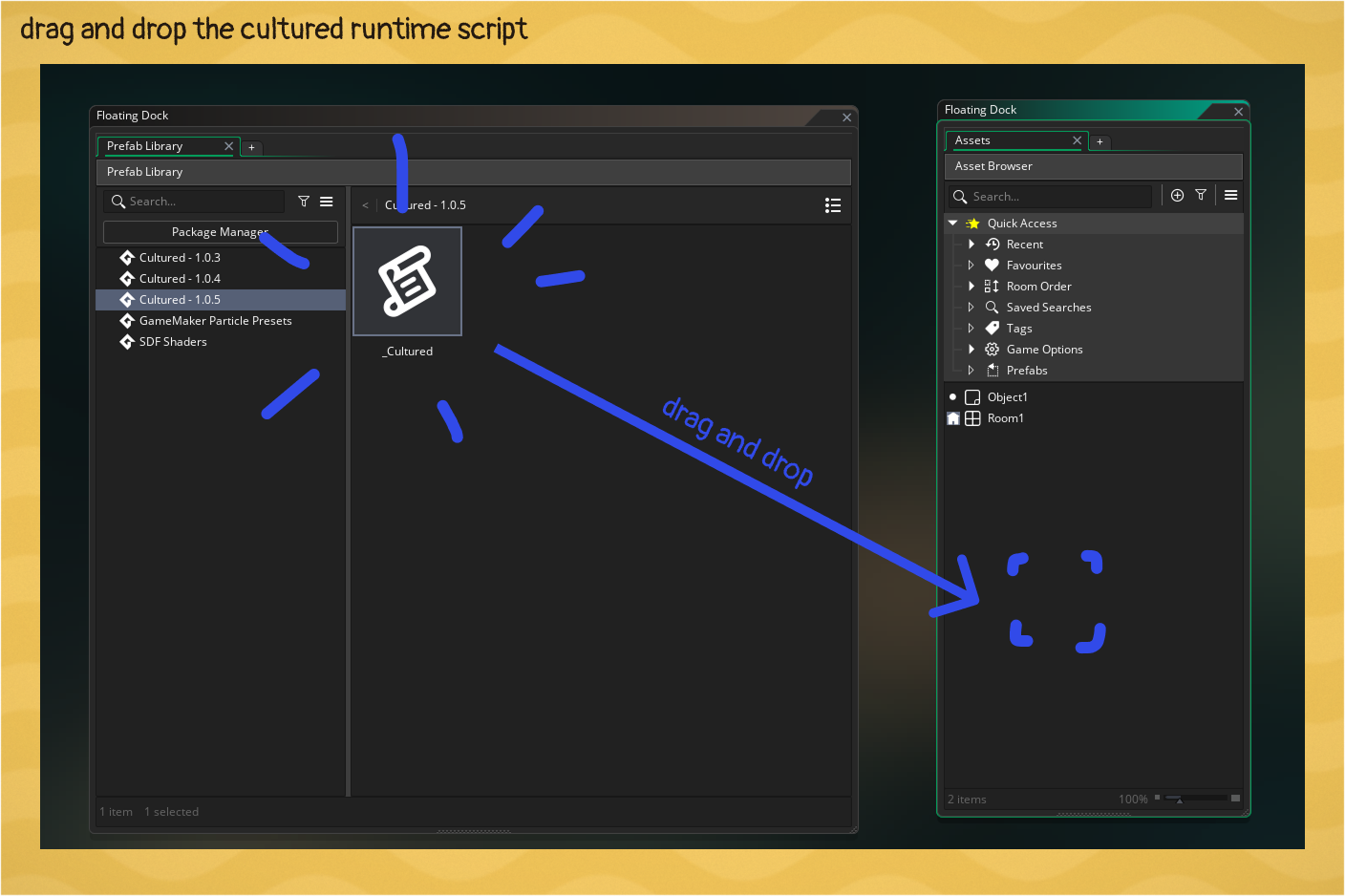
5) Drag the __Cultured into your project from Windows -> Prefab Manager -> Cultured
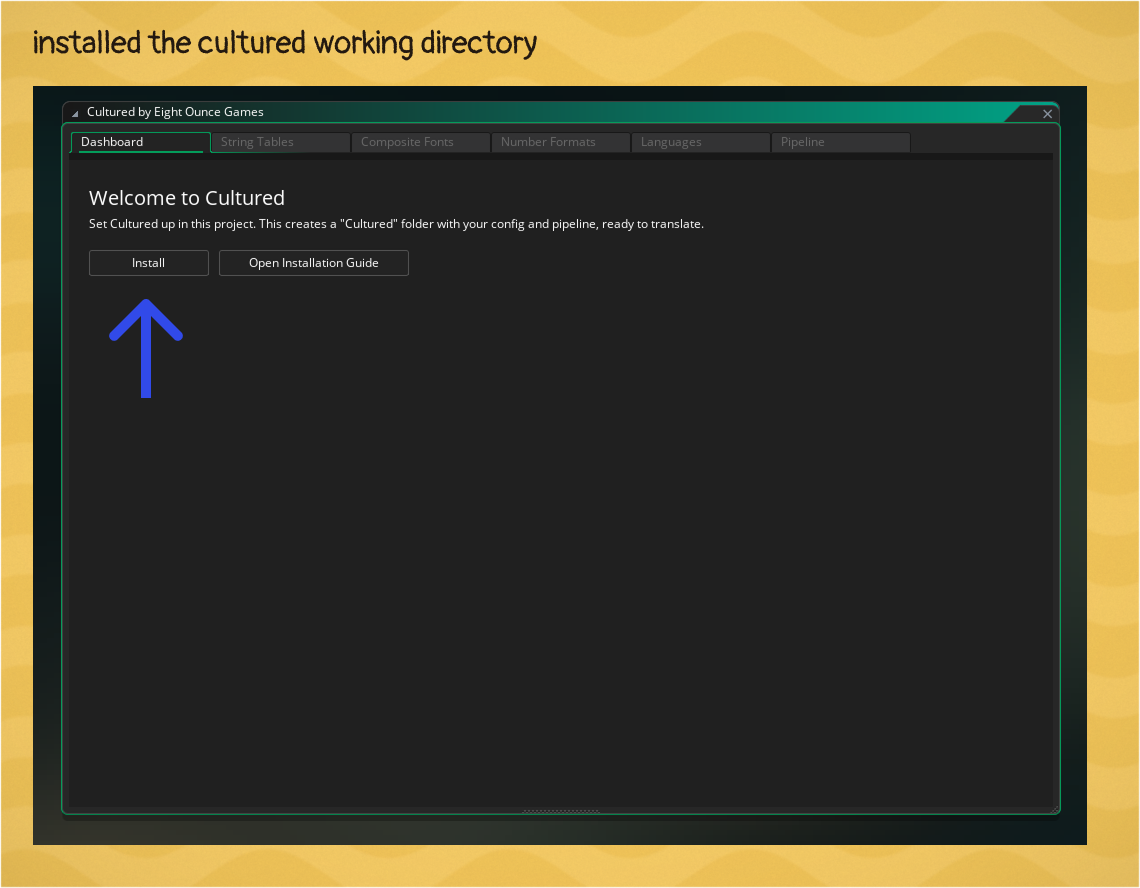
6) Open the Cultured Dashboard found in Tools -> Cultured -> Open Dashboard and click "Install Cultured" to set up the Cultured Working Directory.
Set up your Native and Target languages
Language settings can be found in the Cultured Dashboard under the Languages tab. Set up your Native and Target Languages. You should only author your text content in 1 language, the native language.
- Native language is the language you author your text in before handing it over to translators.
- Target languages are additional languages your game supports after handing it over to translators.
Fundamentals
This section should be read before trying to work in Cultured as it will introduce you to the core concepts needed.
Authoring Text
Authoring text is the literal act of writing the games native language text content. In Cultured this happens in .gml files, the room editor, and String Tables.
Text Identity
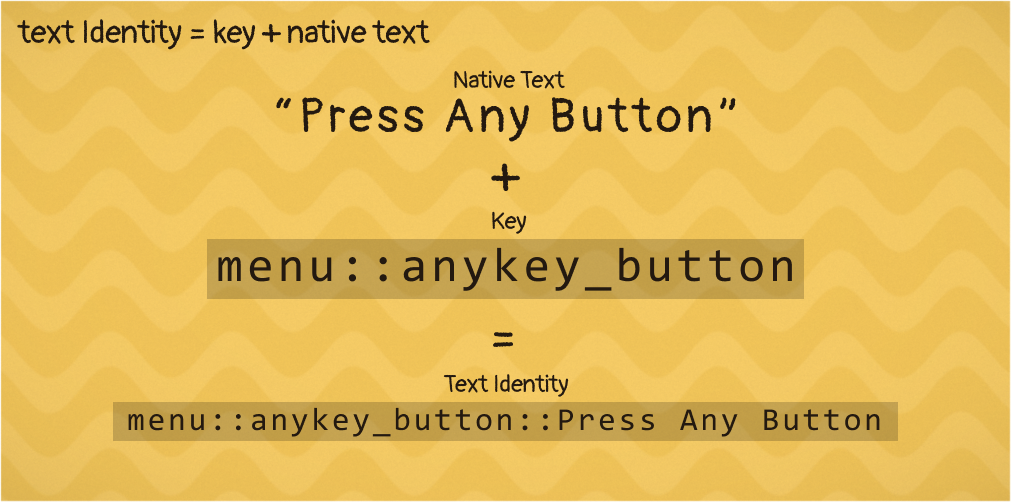 Text identities are used internally to track all the text in your game and look it up at runtime.
A text identity is made up of two parts: The Key and the Native Content. Both of them together form the Text Identity.
Translations are unique to Text Identities and two matching Text Identities are considered a Collision which will result in undefined behavior. When a text identity changed the translation is lost and it will need to be retranslated.
Author-At-Source
Author-At-Source means you author the content in the source. Here in Cultured it means either in your .gml files or in your Room Editor in the Instance Variables window.
Author Externally
Authoring externally means your content is authored externally, outside of the source, like in a CSV. In Cultured external text is loaded through String Tables. String Tables are useful when you have a set of text that you want to reuse across the app, and importantly, the context of the text does not change.
Text Context Matters
To get the best translation out of your translation team you need to provide context for how the text is being used. Context for translators can often just be baked into the Text Identity itself. Remember, Text Identity here means the Key and the Native Context. menu::start_button "Press X To Start" has enough context on its own.
Cultured also supports adding hand written comments to each piece of localized text which gets passed to your translation team in the regular Transfer step of the Cultured Pipeline. Use this feature if the context is unclear from the text identity on its own.
Reusable Localized Text
Not all languages are the same. The same word can have two different meanings in a given language depending on its context. As game developers we want offload the responsibility of knowing when a word should present differently based on context to the translation team.
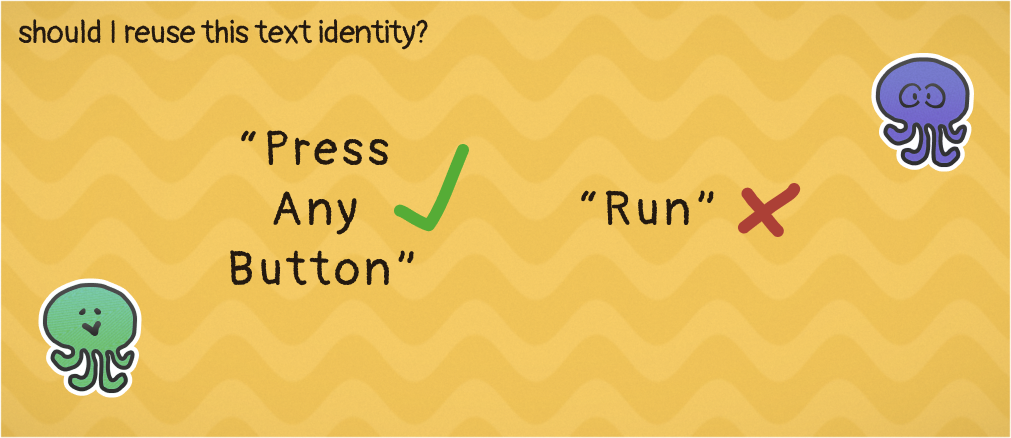 An example, "Press Any Button To Continue" always has the same use and context. You can go ahead and throw it in a StringTable and reference it anywhere by key. But "Run" on its own may have different translations base context usage so don't reuse them.
If you're not sure, safe bet is to just make two different Text Identities, one for each usage.
Next Steps
The plugin is ready to go! Next learn to Author and Translate your text.